Restoring a backed-up SSL certificate onto a fresh Windows Server 2016 / IIS 10 box is straightforward once you know the exact sequence in the certificate MMC snap-in.
- Access the computer certificate store with the MMC snap-in.
- Import your cert to the computer certificate store.
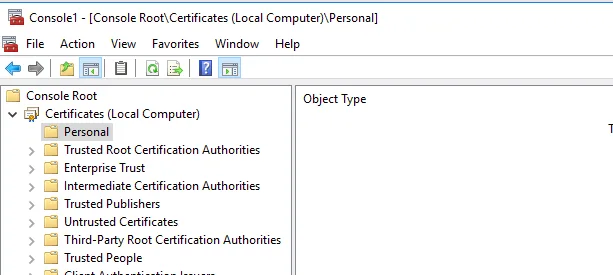
From the certificates store view, right click on Personal and from the context menu, go to All Tasks > Import… You will see the import wizard.
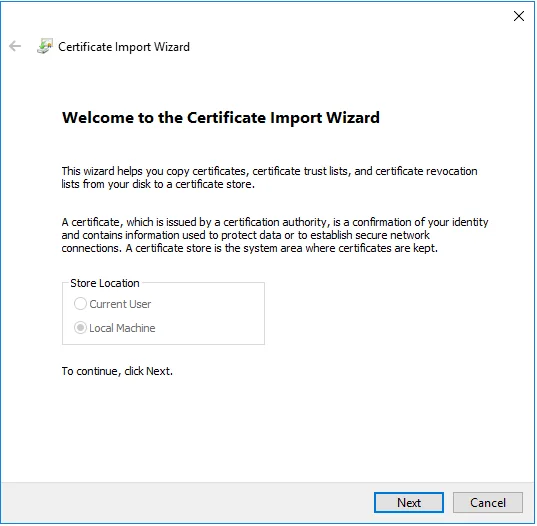
Proceed to the next dialog.
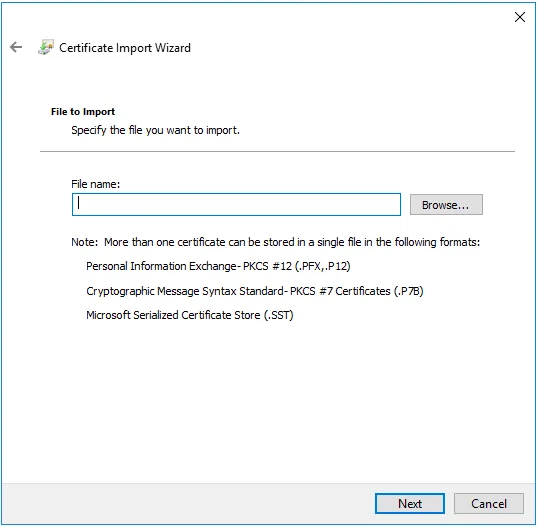
Browse the backup certificate file to import. Next.
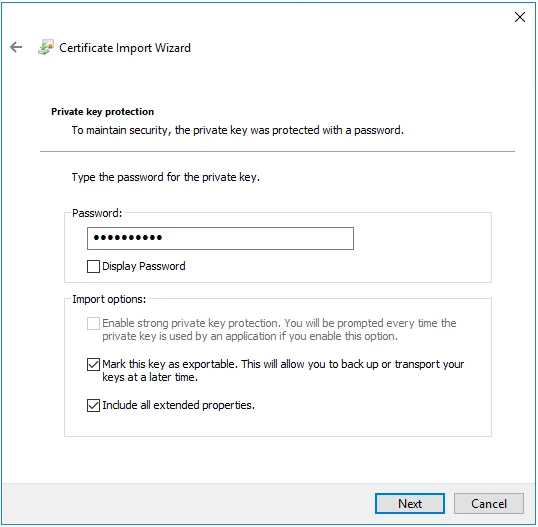
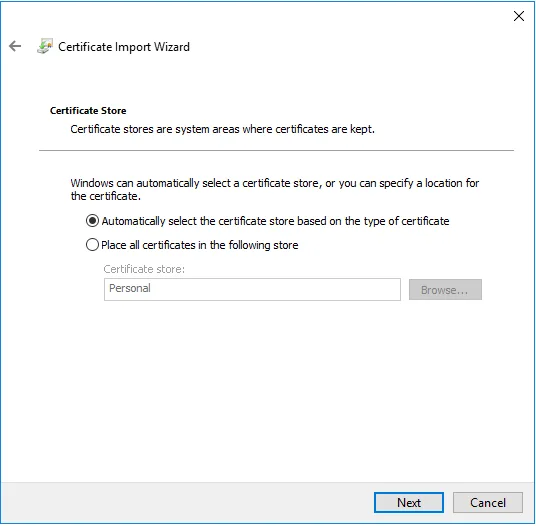
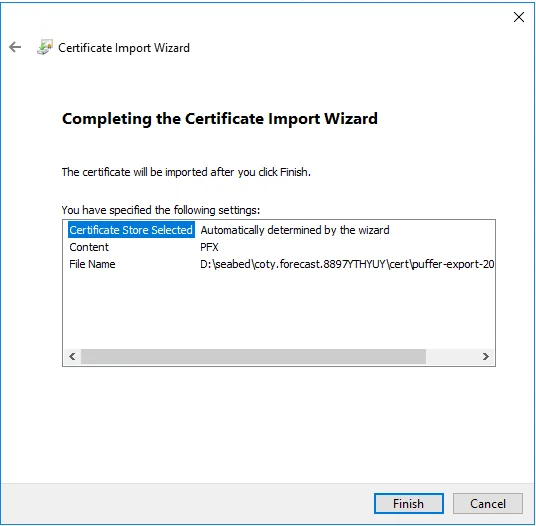
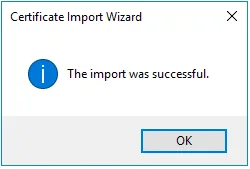
Windows Server’s built-in export/import compatibility across versions is what makes this restore-onto-IIS-10 process this painless, assuming your backup is valid.
Also read: exporting an SSL certificate from Windows Server 2008 R2 (IIS 7.5).