A fresh ASP.NET site on IIS 10 / Windows Server 2016 throwing a bare “500 Internal Server Error” — unhelpful on its own (see HTTP Status Codes for what a 500 actually means), but the cause is almost always the same: the ASP.NET engine was never installed on the new IIS 10 setup.

- Check for a
web.configin your site or app root. If it has ASP.NET configuration elements in it, IIS gets confused before ASP.NET even exists on the box. Temporarily rename or remove it and confirm static content — HTML, images, CSS, JS — loads fine on its own. - Try hitting an actual ASP.NET page. A 404 here (not a 500) confirms the ASP.NET engine genuinely isn’t installed, rather than some other misconfiguration.

Install the ASP.NET engine
- Open Server Manager → Add Roles and Features → select ASP.NET 4.6 (or 3.5, depending what you need).
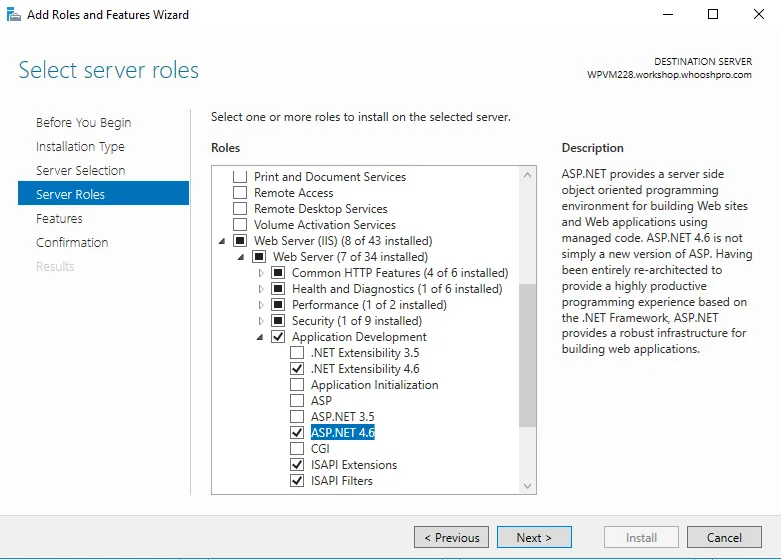
- Let it pull in the dependent features it asks for, and proceed to install.
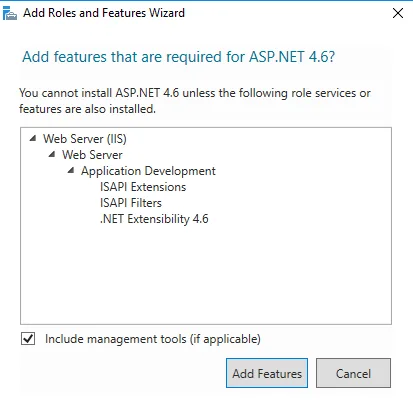
Once install finishes, the site is up and serving ASP.NET pages correctly.
For more of this kind of thing, browse the rest of the Tech pillar.