See the light!

Exporting an SSL certificate from Windows Server 2008 R2 / IIS 7.5

Backing up (or migrating) an SSL certificate off Windows Server 2008 R2 / IIS 7.5 comes down to a clean export from the certificate MMC snap-in — useful for disaster recovery or when you’re moving the cert to a newer server entirely.

  1. Access the computer certificate store with the MMC snap-in.
  2. Export your cert from the computer certificate store.
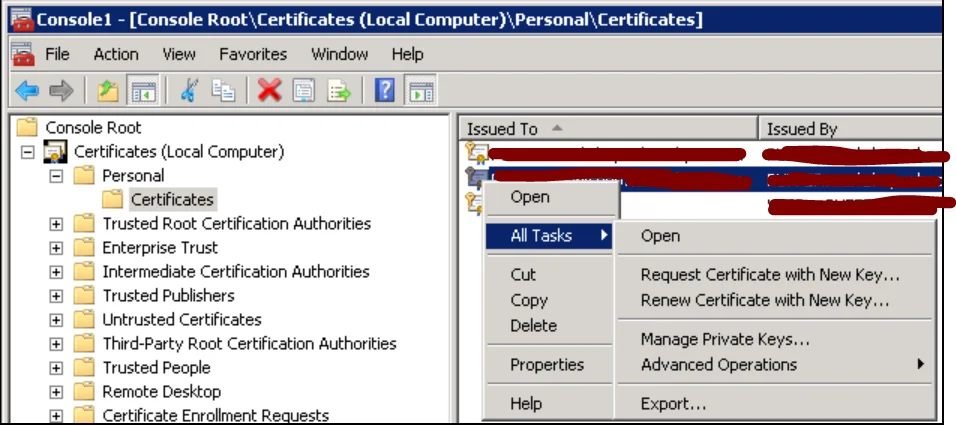
export ssl cert - certificates store
From the certificates store view, right click on the selected cert you wish to export and from the context menu, go to All Tasks > Export… You will see the export wizard. Proceed to the next dialog.
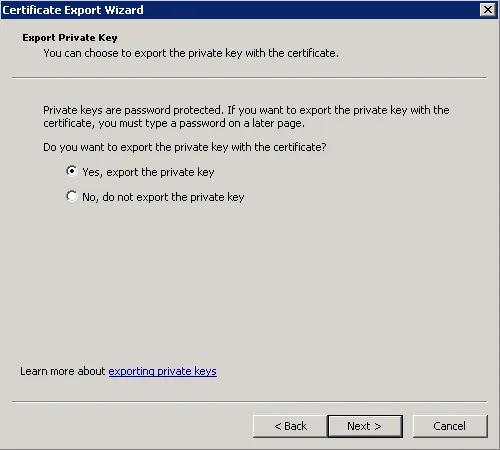
export ssl cert - export private key
Choose to export the private key since you need to restore it together with the certificate. Next.
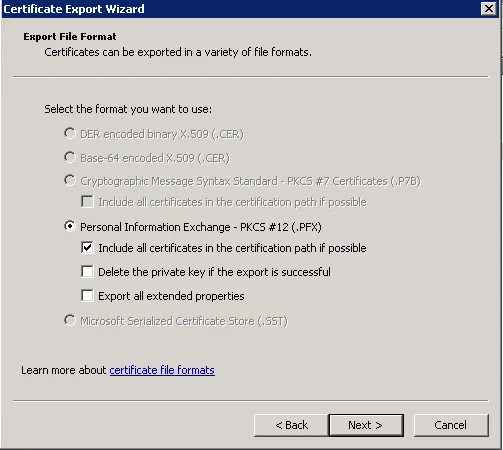
export ssl cert - export file format
You should include all certificates in the certification path if possible, in case there are chained certificates that need to be present for the target certificate to work. Next.
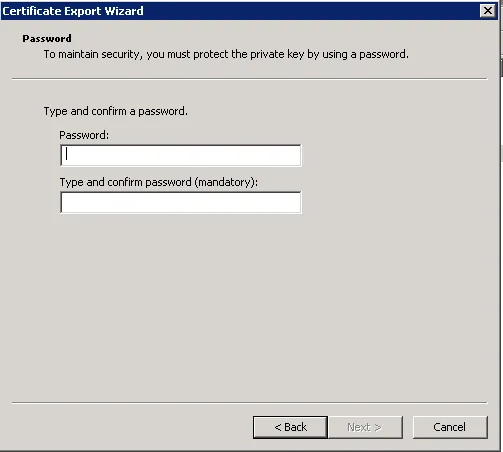
export ssl cert - password protect
Provide your password to protect the exported file. Next.
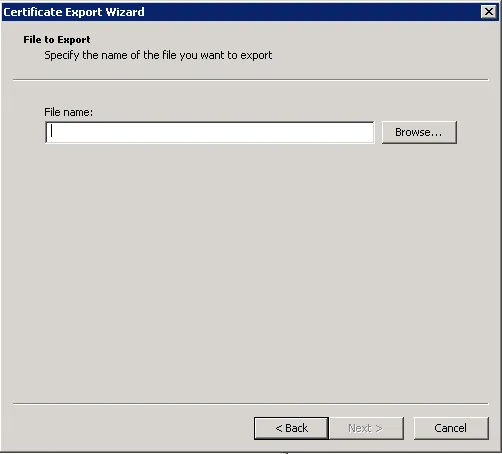
export ssl cert - export to file
Choose the location (it can be anywhere on your computer) of the file you want to export to and give it a file name. The file is in .pfx extension. Next.
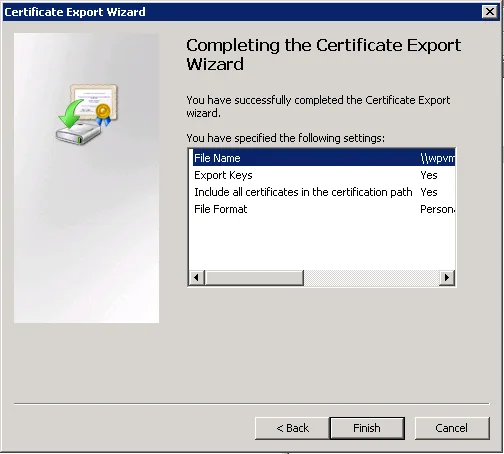
export ssl cert - completing
Review the settings summary. Finish.
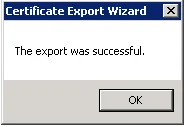
export ssl cert - success

Reminder: Safe keep your exported file (and remember the password used to protect it) on another device in case the original computer is no longer available or accessible.

Also read: importing an SSL certificate to Windows Server 2016 (IIS 10).