Migrating Team Foundation Server 2015 from one machine to another — physical or virtual — because the current server’s running out of resources, or the OS needs upgrading, or the new server has a different hostname entirely.
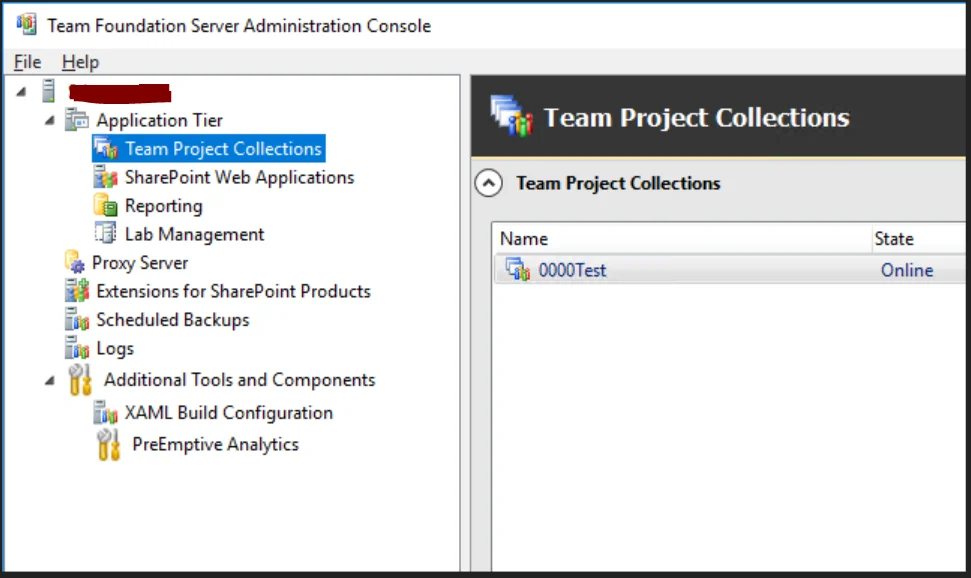
You can’t just install a fresh TFS 2015 on the new box and point it at the old server’s backup set — it takes more than that. Here’s what actually worked for my environment:
Old server: physical machine, Windows 2008 R2 Standard SP1, SQL 2012 Enterprise SP1, TFS 2015 primarily on Git-backed Team Project Collections, no Sharepoint/Reporting/Lab Management configured.
New server: virtual machine, Windows 2016 Standard, SQL 2012 Enterprise SP4, same Git-backed setup, same unused extras.
- Set up the new VM: install Windows 2016, then SQL 2012 Enterprise SP4 — match the collation setting to the current server exactly, this matters per TFS’s own documentation.
- Install and configure the identical TFS 2015 version as the current server — also required per TFS documentation.
- On the current TFS, move team project collections over one at a time. If a collection has data compression enabled (Enterprise-only) and you’re moving to non-Enterprise SQL, disable data compression first.
- To move a collection: stop and detach it. The detach process gathers what the new TFS instance needs to properly recognize and attach it later — skip this and the new server won’t be able to bring it online.
- Back up the detached collection via SQL Management Studio, move the backup to the new server, and restore it there.
- On the new TFS, attach and start the collection.
- Repeat for the remaining collections, then test everything on the new server.
Since this server hosts Git repositories, every team member needs to know the hostname changed — they’ll need to repoint their local Git remotes to the new server URL.
Once everything’s proven stable, decommission the old TFS server. Hope this helps with your own TFS 2015 migration. For more, browse the rest of the Tech pillar.